Send the install request to your Agent
Copy the message below into an Agent that can install Skills and add MCP connections. The community Skill contains production instructions and shot recipes. Kivo Studio MCP gives the Agent access to your authorized Kivo project, assets, quotes and generation tools.
If the Agent needs a manual install, download the repository and put the entire folder containing SKILL.md, examples and references in its Skills directory under kivo-ad-shots. Reload the Agent if the Skill does not appear.
Install kivo-ad-shots from https://github.com/miraga-kivo/kivo-ad-shots-skill and preserve its references and examples. Add the Kivo Studio MCP server at https://kivst.com/mcp and open browser authorization. After I approve access, confirm the Skill is available and list my Kivo projects. Stop before creating any jobs.
Authorize Kivo Studio MCP
When the browser opens, sign in to Kivo with Google and review the requested permissions. Return to the Agent and check that it can list your projects. If your client cannot add the connector from chat, use its MCP settings with the Streamable HTTP URL https://kivst.com/mcp. The connection guide has client-specific steps.
Open the MCP connection guideChoose a full ad or a single shot
For a full ad, give your Agent the target channel, aspect ratio, total runtime, product photos and approved claims. Ask for a shot list with timecodes. Use a 16:9 brand TVC for a launch story, a 9:16 feed ad for a quick hook, a product demo to show a function, or a beauty or lifestyle film to focus on texture and atmosphere. For stills, ask for matching Seedream 5.5 hero images, detail views and posters.
For one difficult shot, describe its opening frame, product motion and end frame. The Skill has options for aerial, underwater, macro, crane or slider movement, product tracking, timelapse and surreal compositing. Start with the effect that best reveals the product.
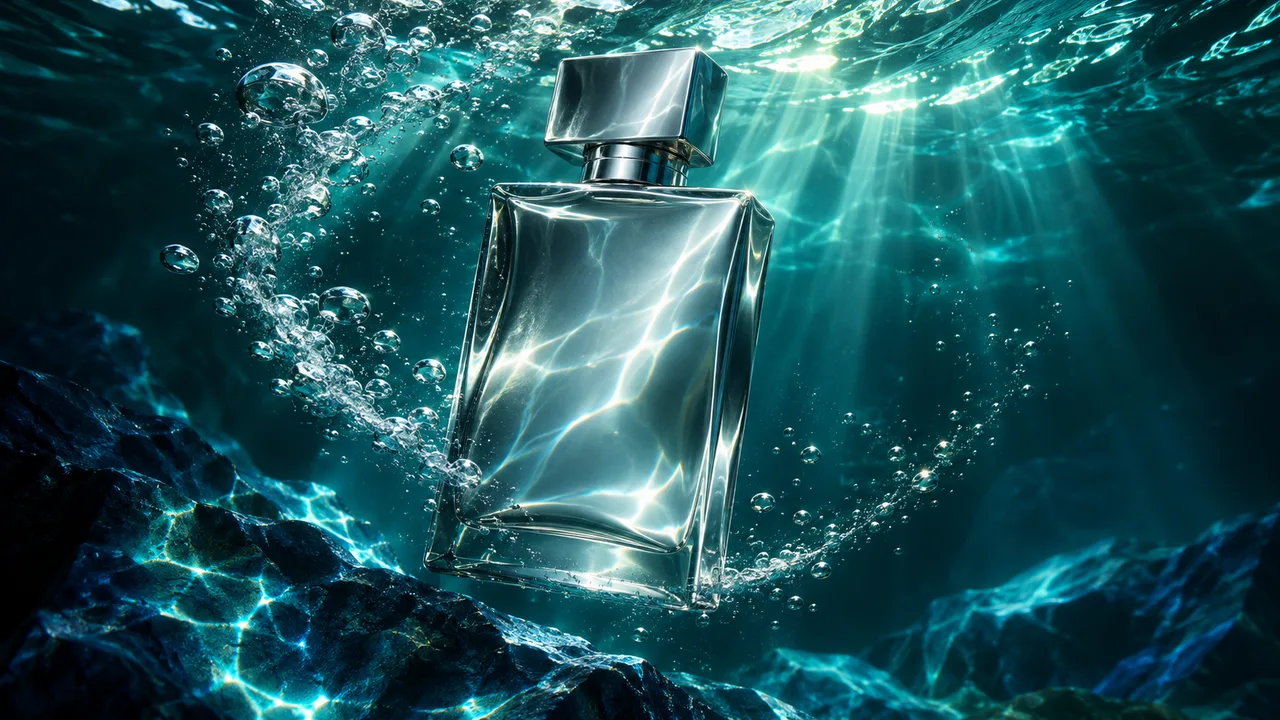
Use kivo-ad-shots in my Kivo project. Make an eight-second 16:9 underwater fragrance reveal using my approved bottle photos. Start wide, push in as the bubbles clear, and hold on the front silhouette. Keep the cap, profile and finish consistent. Suggest the shot and quote one 480p Seedance 2.5 Draft. Wait for my credit limit before submitting.
Try a three-shot feed ad
Use this brief for a complete ad. Swap in your product and approved references before sending it.
Use kivo-ad-shots and my Kivo project to plan a 15-second 9:16 ad for a sparkling orange drink. Use the approved front and three-quarter photos of the can in every shot. Open with a macro splash, cut to the can opening and pouring, and end on a clean pack shot with space for the CTA. Give me the timecoded storyboard and first quote only one 480p Draft for the splash. Wait for my credit limit.
Review Drafts, then finish and edit
Ask the Agent to use the same approved product references across clips and read the live model catalog. Start by quoting one or two Drafts of the shots most likely to fail. Confirm a credit limit, then review the results in the same project in Kivo Studio. For the underwater shot, check the cap shape, refraction and whether the label area stays readable. In a multi-shot ad, also check that the product looks consistent at each cut.
After choosing a take, ask the Agent for a separate final quote. Seedance 2.5 can render a valid 480p Draft as a 1080p or 4K final. Approve the final quote, then download the finished clips from the project. For a complete spot, ask an Agent with editing tools to assemble the clips and add approved captions, voice-over, music and the end card, or edit the downloaded clips in your usual editor.